R6 Cheat · Mismatched Build
"Mismatched build" — what it means and how to fix it
If the loader stops with a "Mismatched build" popup, it has been pointed at a copy of Rainbow Six that is not the one you actually play on. You can fix it yourself in about a minute by telling the loader exactly where your RainbowSix.exe lives — no ticket needed.
Step 1
What the popup means
The loader and your game disagree about which build is running.
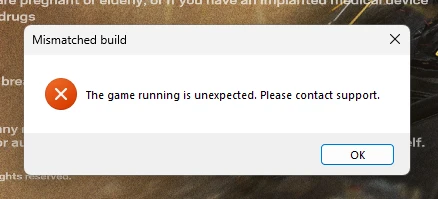
The popup looks like this and has a single OK button:
Mismatched build — The game running is unexpected. Please contact support.Every build of Rainbow Six sits at different memory addresses, so the loader has to know exactly which RainbowSix.exe you play on. It keeps a path to that file, and until now it guessed that path for you. If the guess points at a different copy than the one you launch — the game on another drive, a second install from Steam or Ubisoft Connect, or a folder that moved after an update — the loader prepares for one build while a different one starts, and it stops with this popup.
Ignore the "contact support" part for now. This is a fix you can do yourself: find the RainbowSix.exe you actually run (Step 2), paste its path into the loader (Step 3) and load again. Only open a ticket if the popup still shows after that.
Click image to expand
What you are seeing. The loader has compared the Rainbow Six build it was pointed at against the game that is actually running, and they do not match.
Step 2
Find the RainbowSix.exe you actually play on
Task Manager tells you exactly which file is running — no guessing.
- 1
Launch Rainbow Six Siege normally, without the loader, and wait until it reaches the menu.
You only need the game open long enough to read where its file lives.
- 2
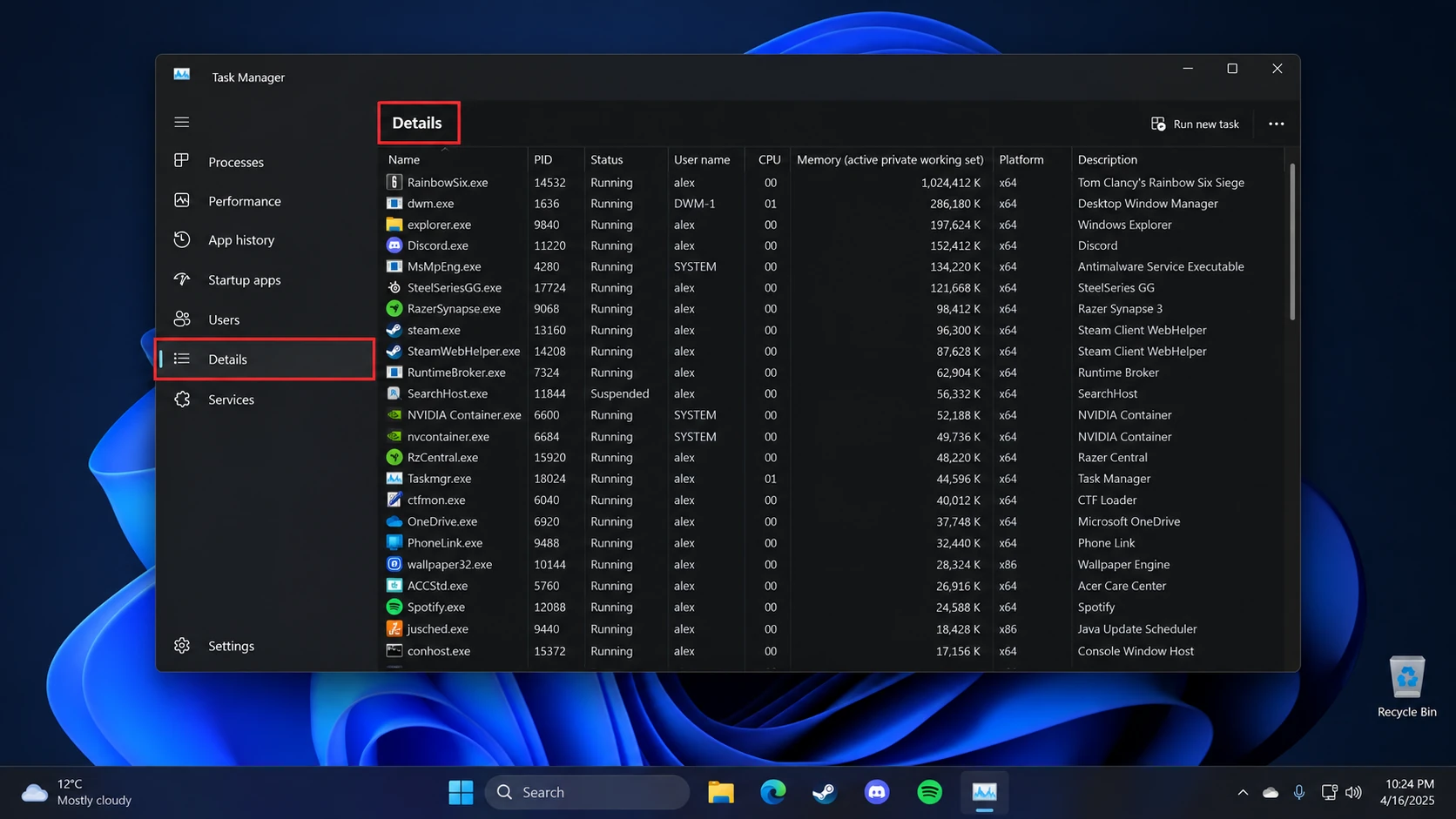
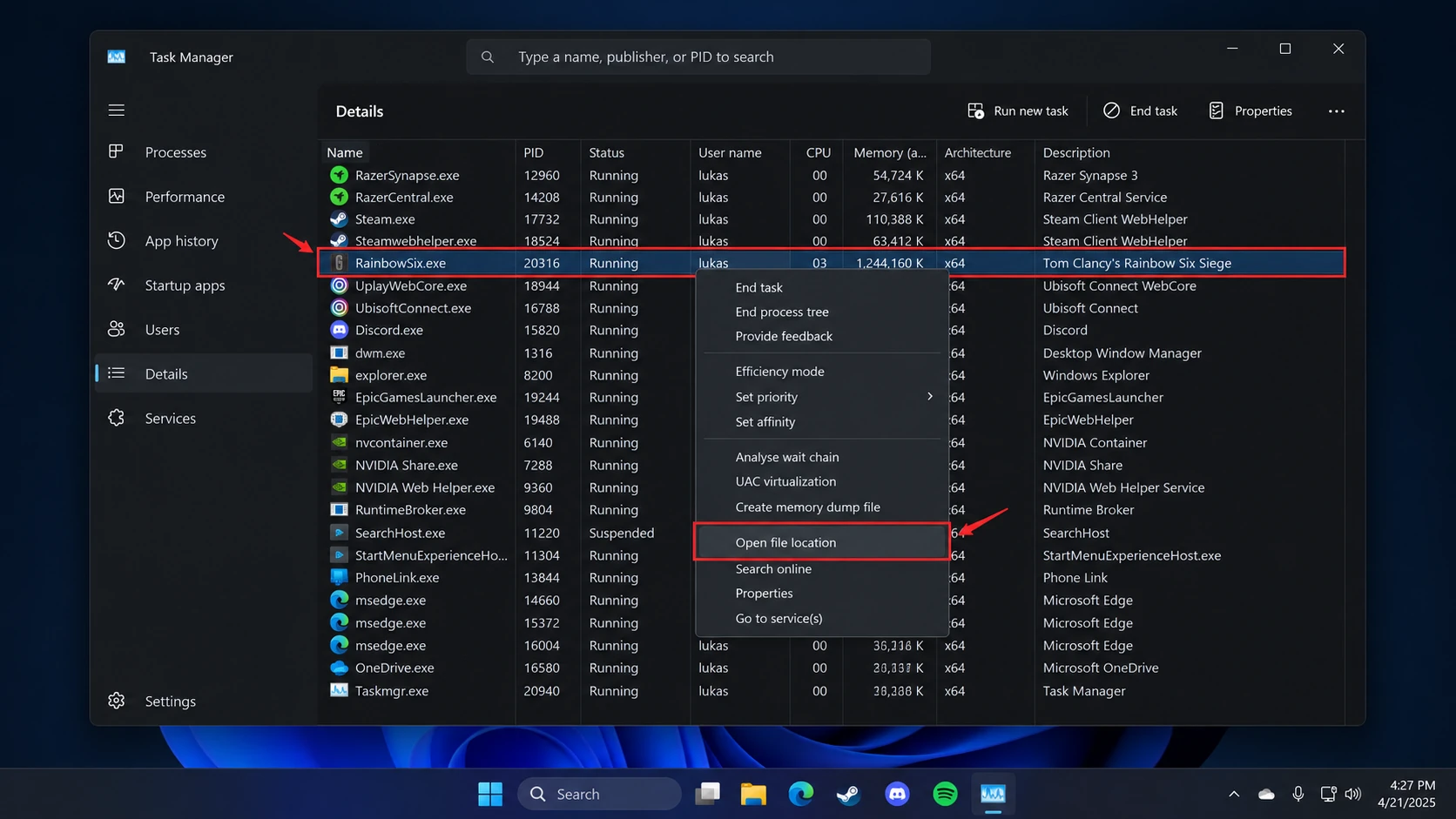
Press Ctrl + Shift + Esc to open Task Manager, then click Details in the left sidebar.
Details in the left sidebar on Windows 11 — on Windows 10 the same tab runs along the top - 3
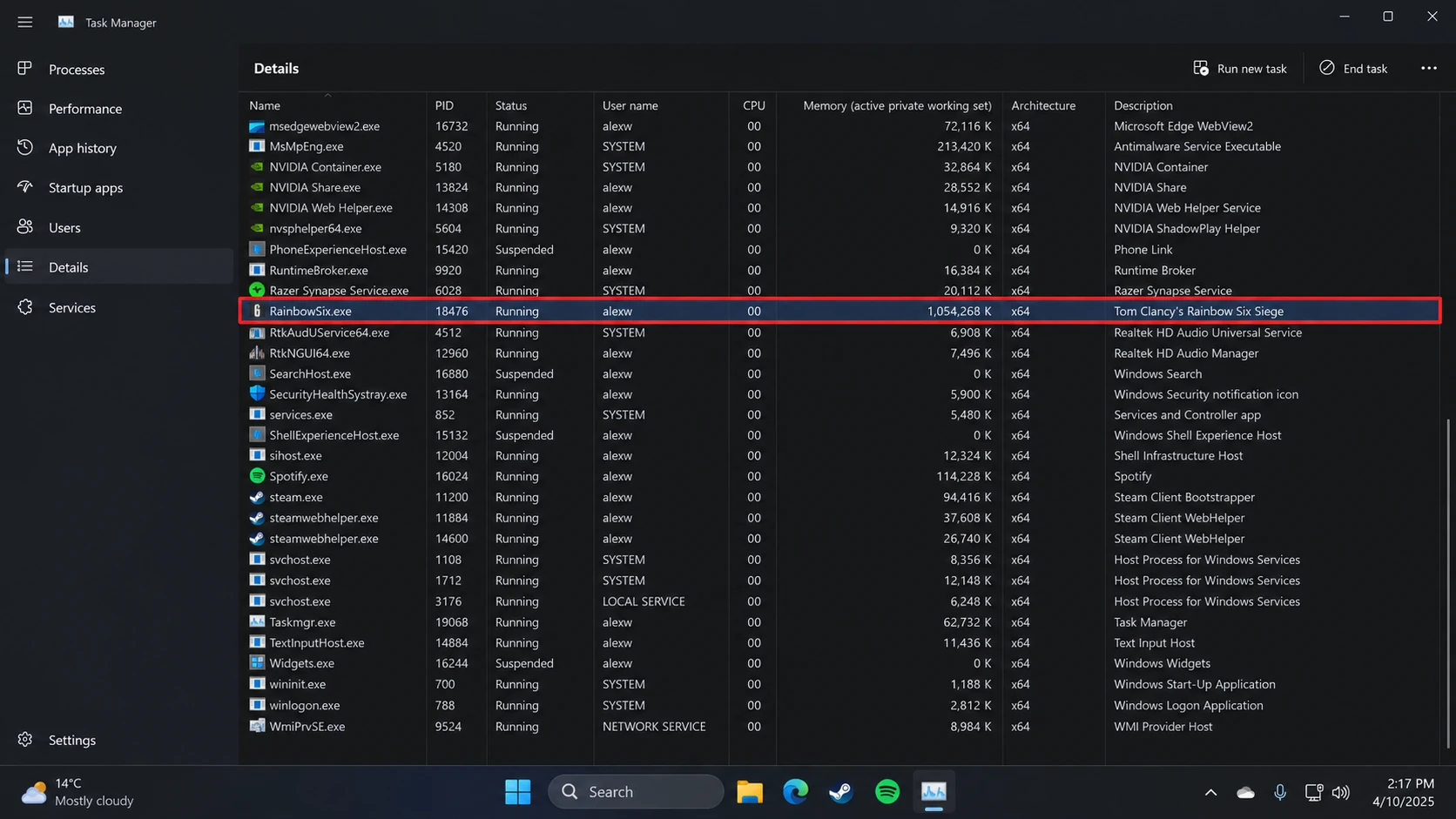
Scroll to RainbowSix.exe. The Description column reads "Tom Clancy's Rainbow Six Siege".
The Description column confirms it — "Tom Clancy's Rainbow Six Siege" - 4
Right-click it and choose Open file location.
Right-click the highlighted row and pick "Open file location" from the menu - 5
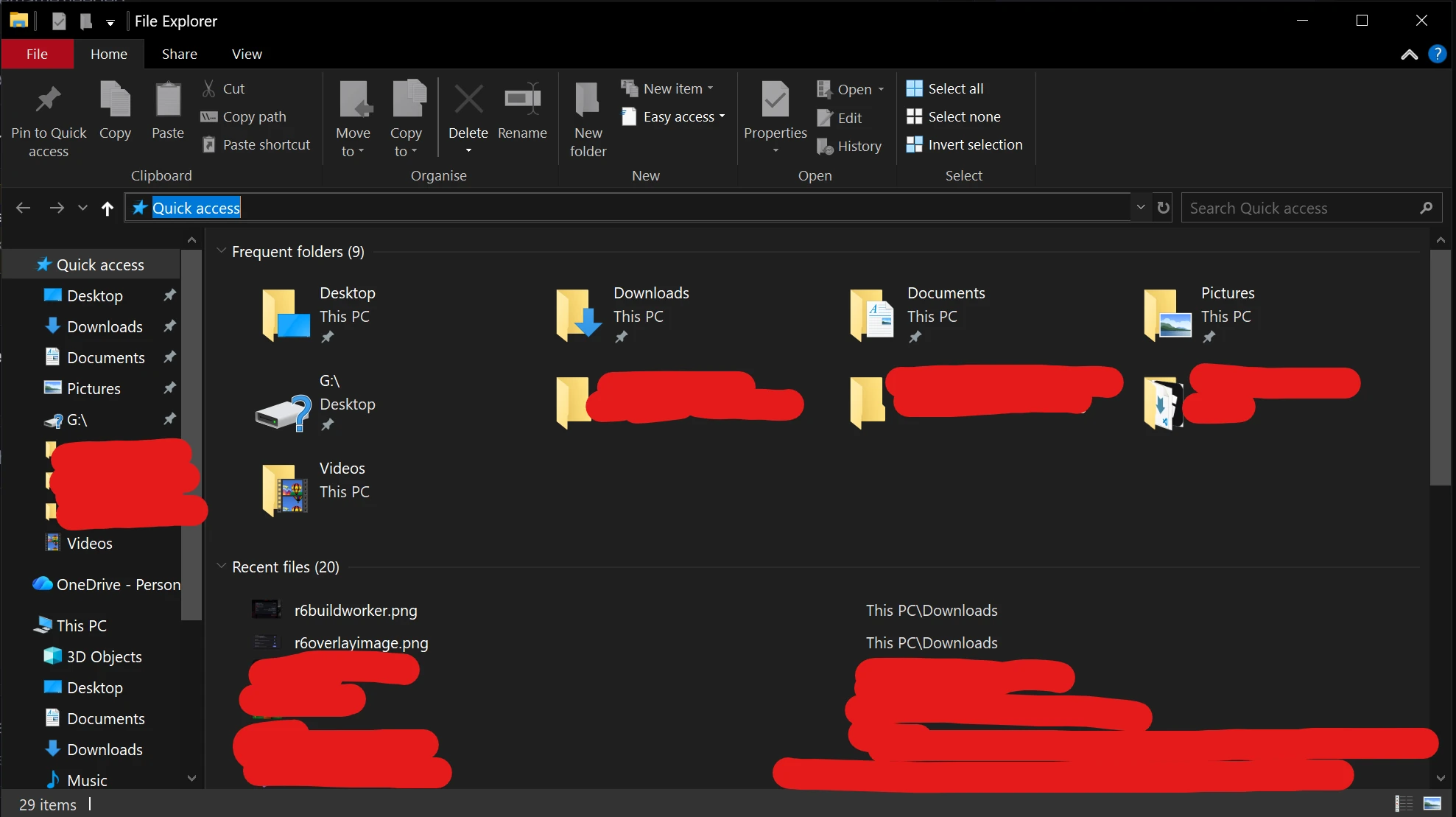
In the File Explorer window that opens, click the address bar so the path turns blue, then press Ctrl + C to copy it.
This is the folder. In Step 3 you will add \RainbowSix.exe to the end of it.
Click the address bar so the current path turns blue and is ready to copy - 6
Close the game before you continue.
The cheat must inject before Siege starts, so the game has to be closed when you click Load.
Typical locations. Ubisoft Connect installs usually sit at C:\Program Files (x86)\Ubisoft\Ubisoft Game Launcher\games\Tom Clancy's Rainbow Six Siege\RainbowSix.exe and Steam installs at C:\Program Files (x86)\Steam\steamapps\common\Tom Clancy's Rainbow Six Siege\RainbowSix.exe. Yours may be on another drive letter entirely — that is exactly why Task Manager is the reliable way to check. If you would rather not launch the game: in Steam, right-click the game → Manage → Browse local files; in Ubisoft Connect, open the game page → Properties → Local files → Open folder.
Step 3
Point the loader at that file
One text box in the loader. Paste the full path, ending in RainbowSix.exe.
- 1
Open the loader and find the box labelled RAINBOWSIX.EXE PATH.
The RAINBOWSIX.EXE PATH box in the loader — the text above it says to only change this when support asks you to, and this popup is that case - 2
Click into the box, press Ctrl + A to select everything already in it, then Ctrl + V to paste the folder path you copied in Step 2.
- 3
Add
\RainbowSix.exeto the end so the whole line finishes with the file name.For example D:\Games\Tom Clancy's Rainbow Six Siege\RainbowSix.exe — the loader needs the file, not just the folder. Keep the backslashes and the apostrophe in Clancy's exactly as Windows shows them.
- 4
Click Load, wait for "Successfully loaded, please launch game", then launch Siege as normal.
Same startup sequence as always — loader first, game second.
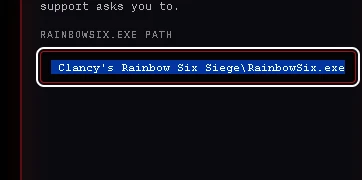
Only change this box if you have seen the popup. The loader says to leave this field alone unless support asks you to. The Mismatched build popup is the one reason to touch it. If the loader runs fine, leave the path as it is.
Step 4
Still seeing it?
Then it is our side to look at — send us two screenshots.
- 1
Take a screenshot of the popup.
- 2
Take a screenshot of the loader with the RAINBOWSIX.EXE PATH box visible, so we can read the full path.
- 3
Open a ticket on Discord, attach both, and say "Mismatched build on R6".
Average response time is about 10 minutes.
Still stuck?
Open a ticket and paste a screenshot of the popup — average response time is about 10 minutes.