
R6 Cheat · Build Transfer
"Build transfer" — what it is and what to do
Sometimes the loader asks to upload your copy of the game before it can inject. That is normal — this page explains why it happens, and what to do in the one case where it fails.
Step 1
What this panel is
Your game build being sent to us so we can pull the offsets for it.
If you see the Build transfer panel when you load, the loader is uploading yourRainbowSix.exe to our server. That file is your QB — the exact build of the game you have installed.
Every build sits at slightly different memory addresses, so we need a copy of yours to generate theoffsets the cheat uses. Once we have a QB, it is done forever for everyone on that build.
This is not a problem. It is a one-time upload, it happens automatically, and it only sends the game executable — nothing personal. Let it finish and carry on loading as normal.
Not everyone will see this. There is only a limited number of QBs in circulation, and we already hold most of them. You are only asked when yours is one we have not seen yet — once the full set is collected, this panel disappears for good.
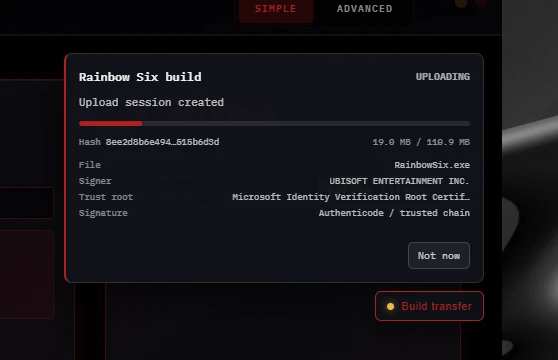
Click image to expand
Healthy upload. Status reads UPLOADING with Upload session created and the bar is moving. The signer showing UBISOFT ENTERTAINMENT INC. just confirms it picked up the real game file.
Step 2
If it says the upload failed
One specific message means you need to send us the file by hand.
If the panel shows this message instead of uploading, the loader could not build your config and the automatic transfer will not complete:
configGen worker returned failure code 1When you see that, do these two things — the rest of this page walks through both:
- 1
Open a support ticket on our Discord.
Tell staff you got configGen failure code 1 on R6 so they know what they are looking at.
- 2
Send us your RainbowSix.exe in that ticket.
We pull the offsets from it manually, then you are good to load.
Step 3 · Method 1
Find your RainbowSix.exe — the quick way
Copy one line into File Explorer. No username needed.
The file normally lives here, where User is your own Windows username:
C:\Users\User\AppData\Local\Ubisoft\r6s\RainbowSix.exeDo not type the word User literally. User is a placeholder for your account name. If you paste that path exactly as written, Windows will tell you the folder does not exist. The trick below skips the problem entirely.
Windows can fill your username in for you:
- 1
Press Win + E to open File Explorer.
Any folder window will do.
- 2
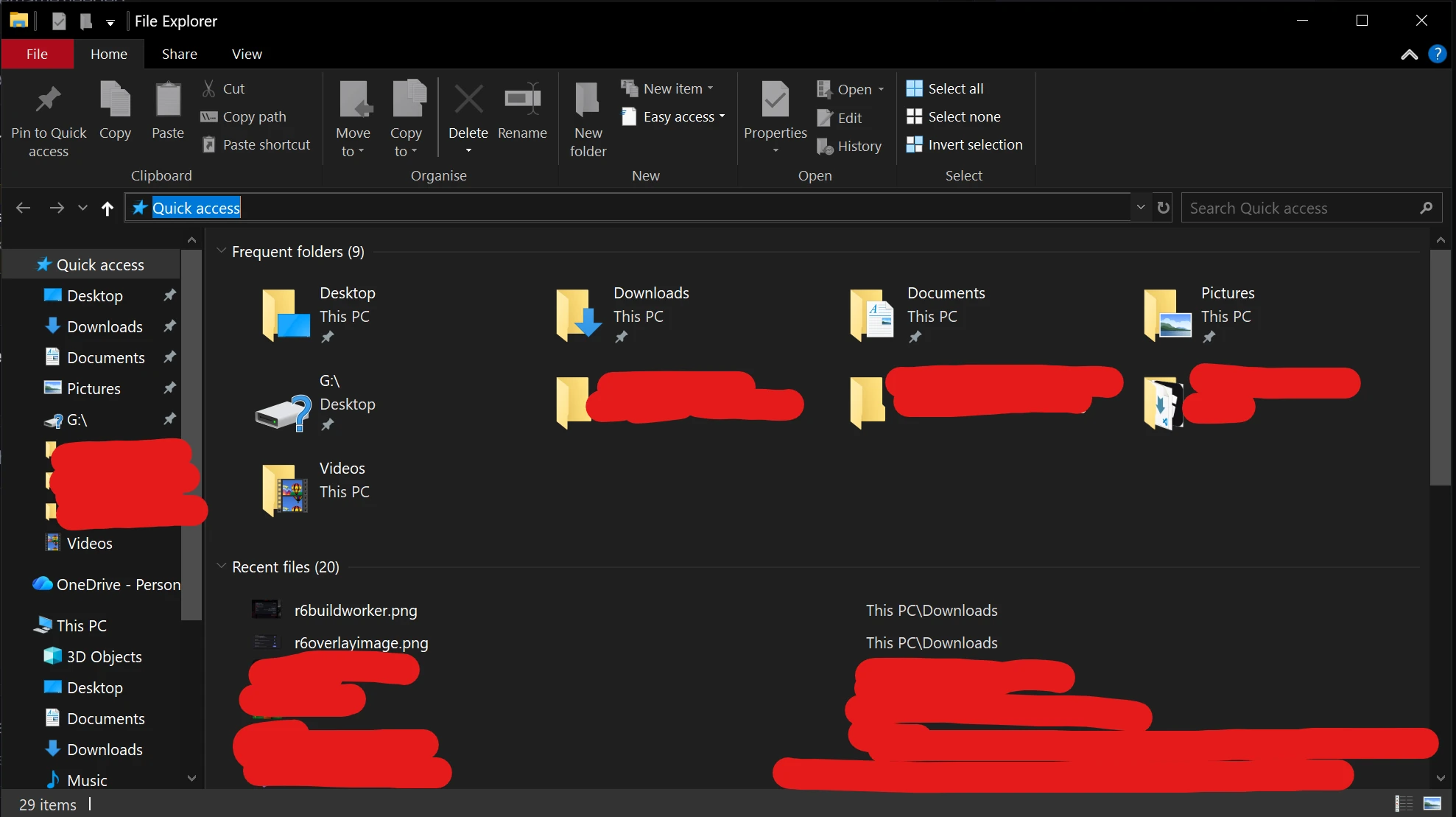
Click the address bar at the top so the path highlights blue.
Click the address bar so the current path turns blue and is ready to be typed over - 3
Paste
%localappdata%\Ubisoft\r6sand press Enter.%localappdata% is a shortcut Windows expands to your own account folder automatically.
- 4
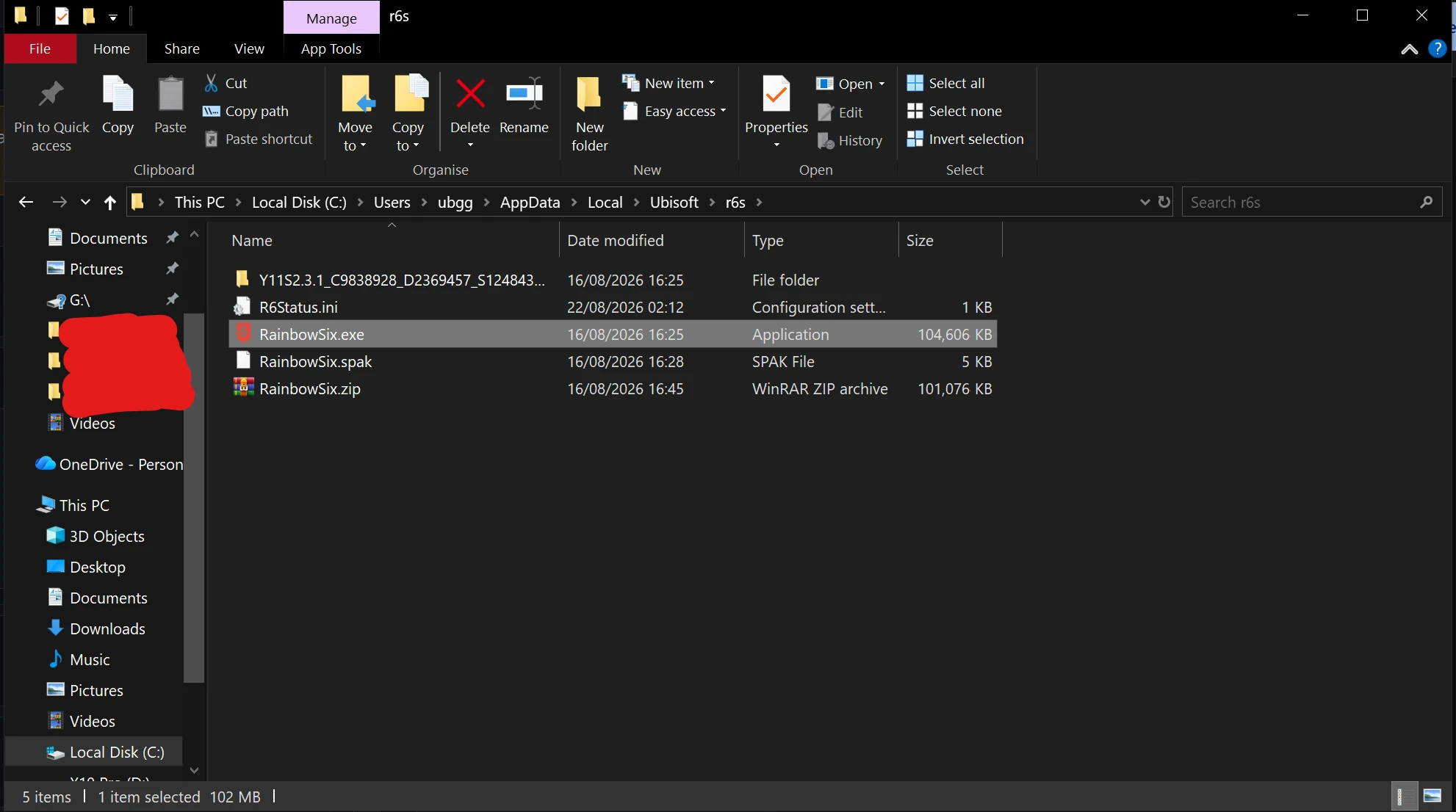
The folder opens and RainbowSix.exe is inside — around 100 MB.
Leave this window open, you will need it in Step 5.
The r6s folder with RainbowSix.exe selected — note the size, roughly 104,000 KB
Step 3 · Method 2
Find your Windows username
If you would rather type the full path yourself, or staff ask you for your username.
Your username is the folder name Windows made for your account. Either of these shows it — pick whichever looks easier:
Option A · File Explorer
- 1
Press Win + E, then click This PC in the left sidebar.
- 2
Open your C: drive, then open the Users folder.
- 3
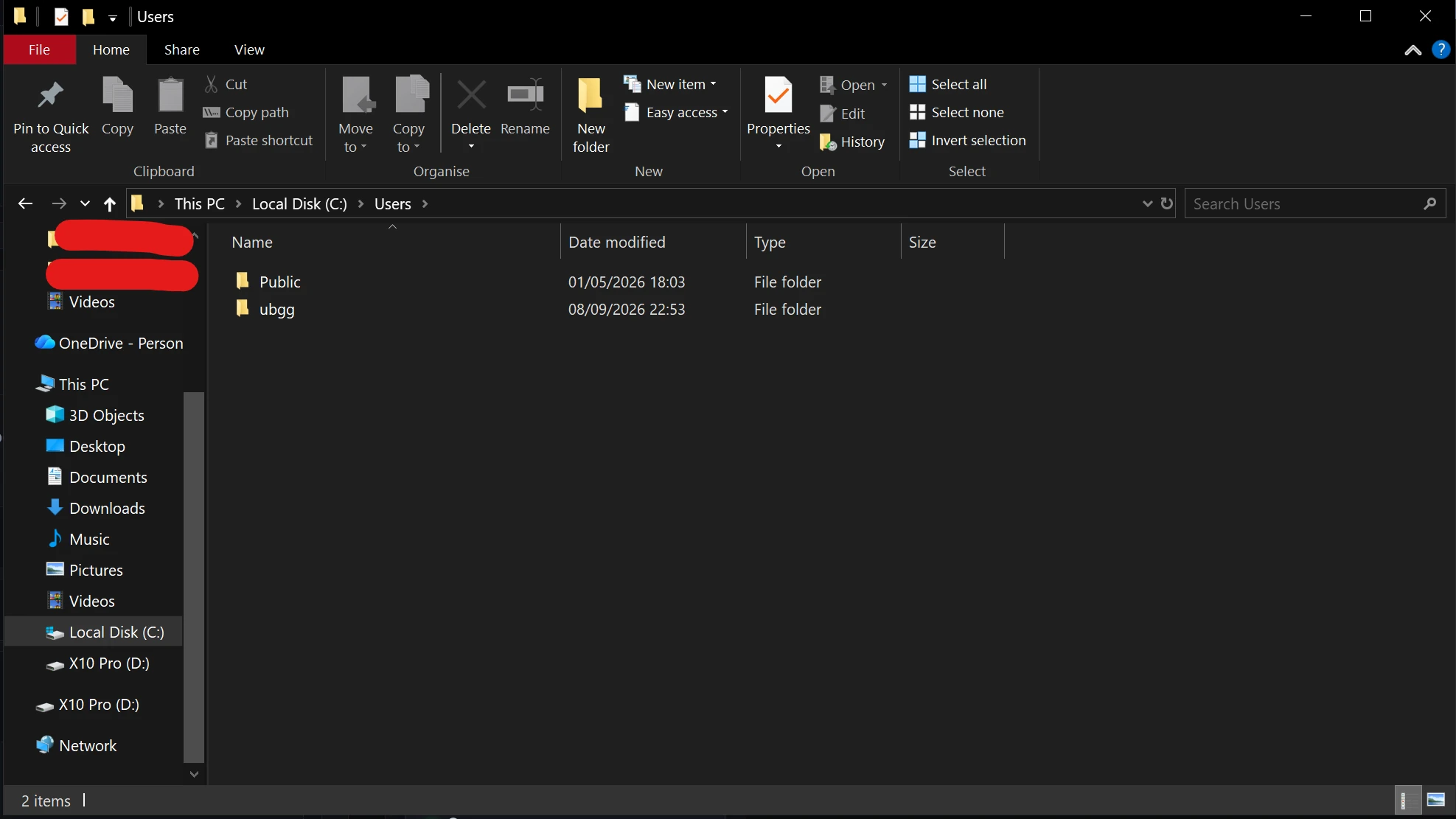
You will see a folder with your name on it — ignore
Public, andDefaultorAll Usersif they show up.That folder name is your username. It is what replaces "User" in the path above.
C:\Users — here the account folder is "ubgg", so that is the username. Yours will say something else.
Option B · Command Prompt
- 1
Press Win + R, type
cmdand press Enter. - 2
Type
echo %username%and press Enter.The line it prints back is your username — nothing else on your PC changes.
The line printed underneath — "ubgg" here — is the username. Yours will be different.
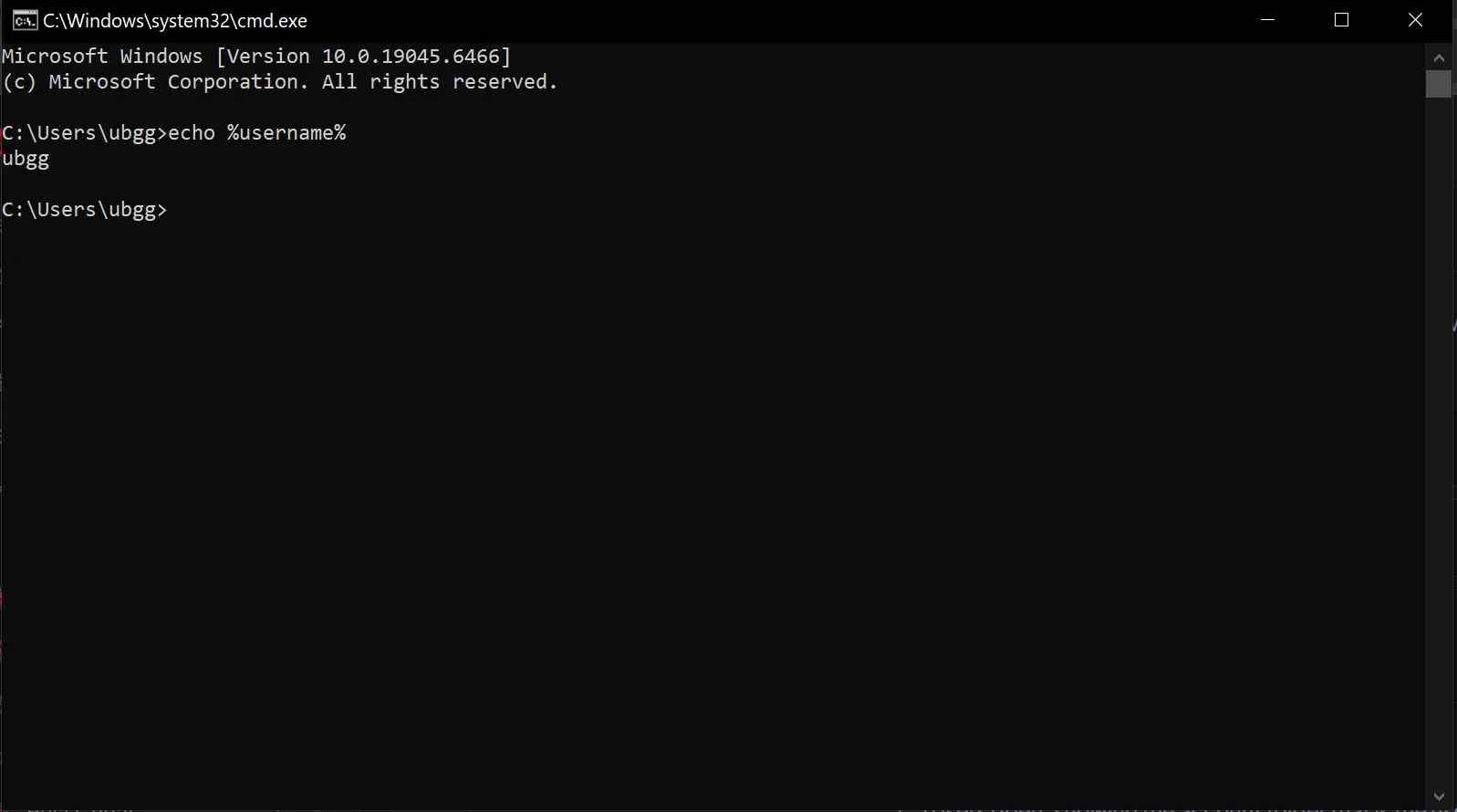
Now build the path. Swap your username into C:\Users\YOURNAME\AppData\Local\Ubisoft\r6s\ and paste it into the File Explorer address bar. If AppData looks like it is missing, it is only hidden — the pasted path still opens it fine.
Step 4 · If the folder is not there
Find it with Task Manager instead
Works no matter where the game is installed — Steam, another drive, anywhere.
Not every install lives in the Ubisoft folder. If that path does not exist on your PC, let Windows tell you where the game actually is — you just need the game running.
- 1
Launch Rainbow Six Siege and leave it open on the menu.
The game has to be running or there is no process to find. Alt-Tab back to the desktop.
- 2
Press Ctrl + Shift + Esc to open Task Manager.
If it opens as a small box, click "More details" at the bottom first.
- 3
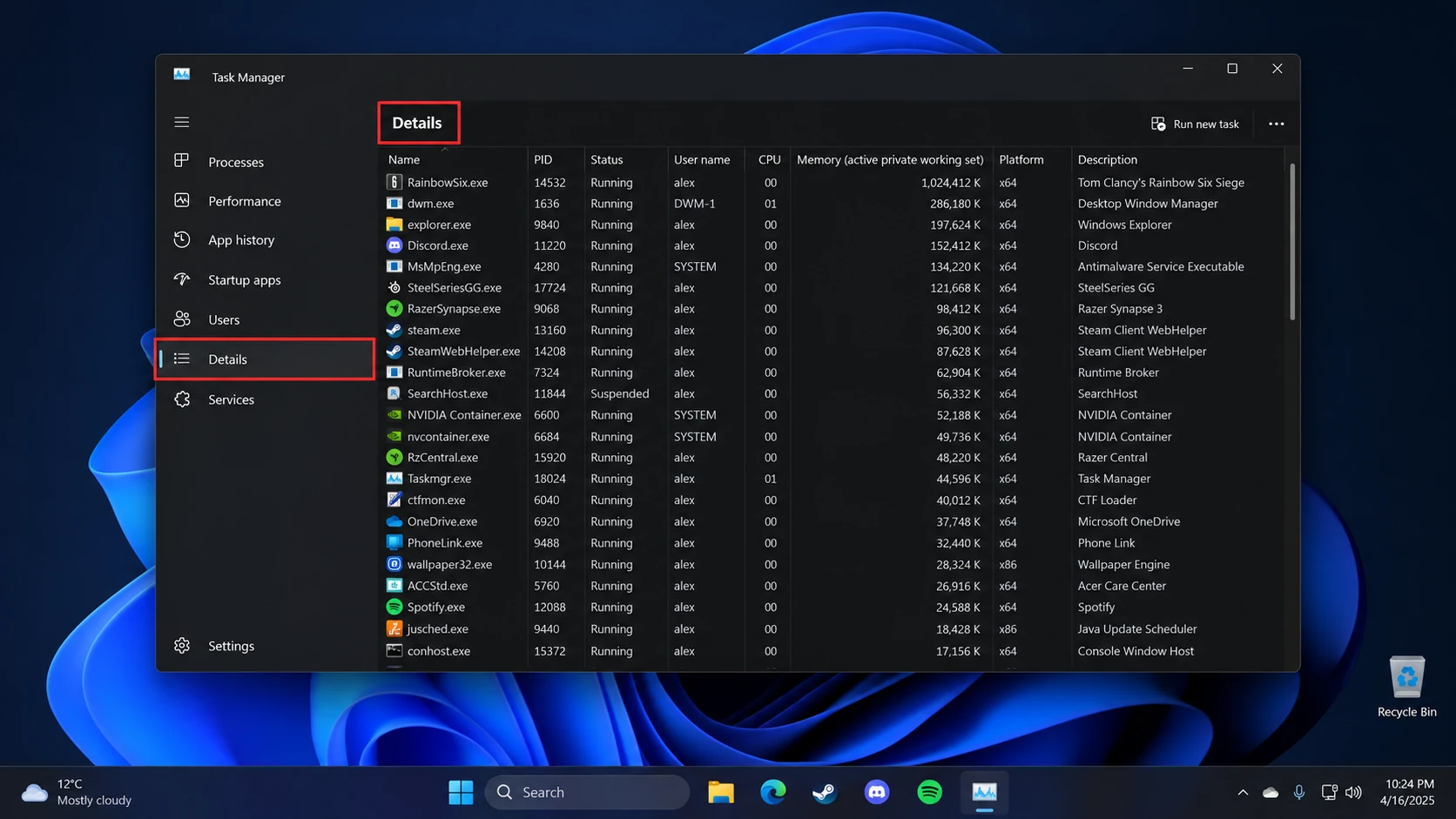
Go to the Details tab.
On Windows 10 it is along the top; on Windows 11 it is in the left sidebar.
Details in the left sidebar on Windows 11 — on Windows 10 the same tab runs along the top - 4
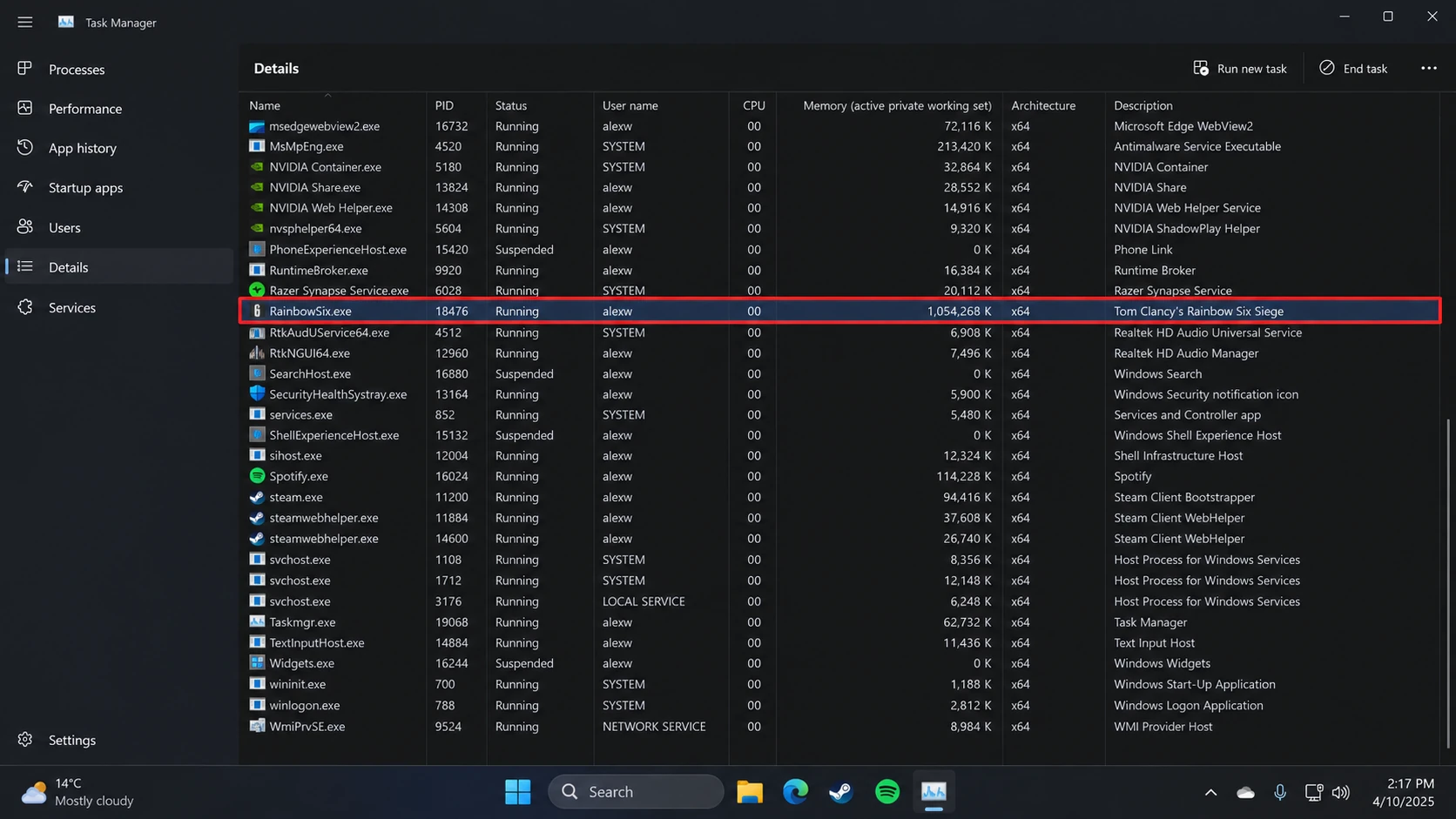
Find RainbowSix.exe in the list.
Click the Name column header to sort alphabetically if the list is long.
The Description column confirms it — "Tom Clancy's Rainbow Six Siege" - 5
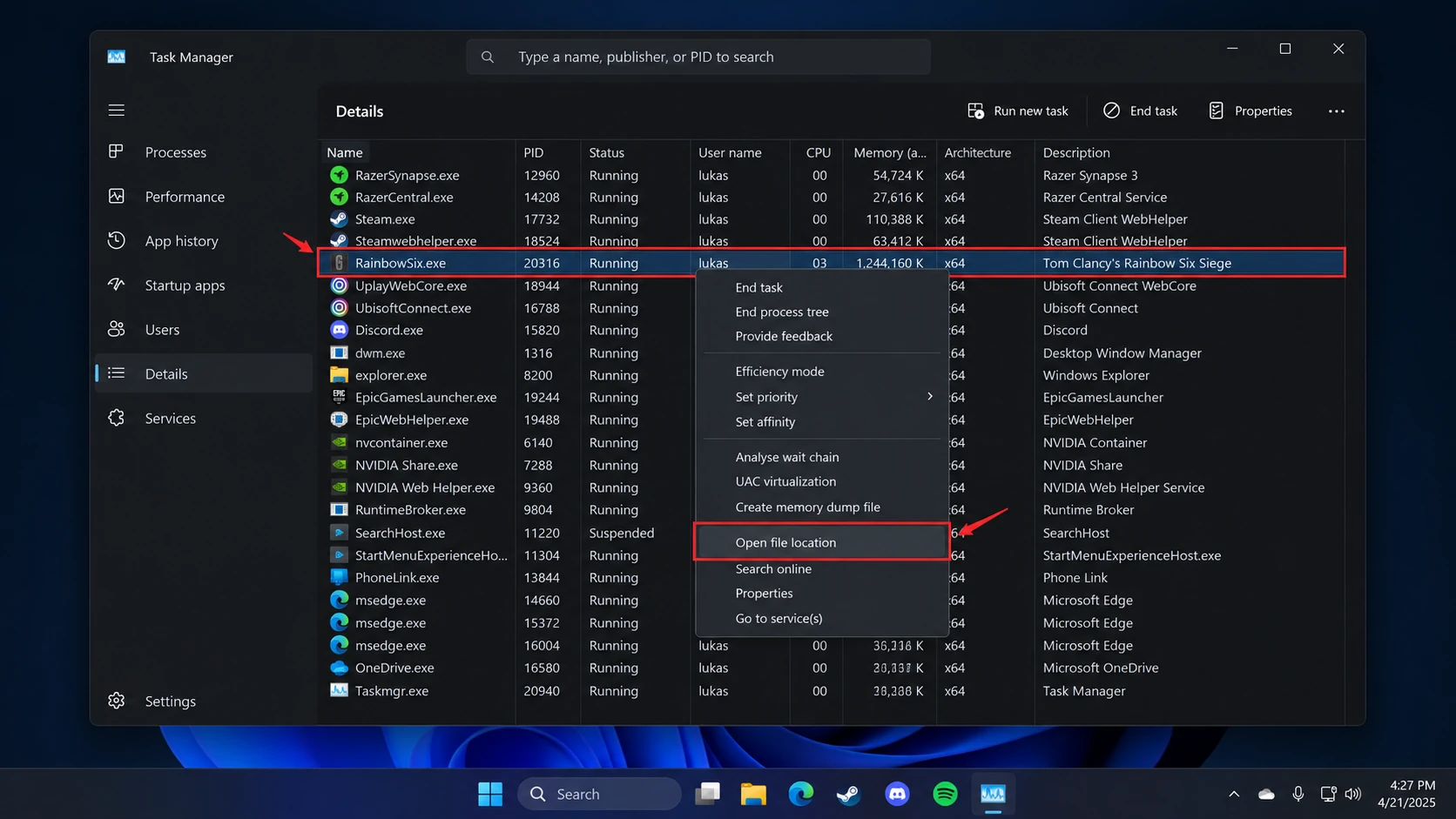
Right-click it and choose Open file location.
File Explorer opens on the real folder with RainbowSix.exe already selected.
Right-click the highlighted row and pick "Open file location" from the menu - 6
Close the game before you copy the file.
Windows can refuse to copy an executable while it is running.
Still cannot find it. Take a screenshot of your Task Manager Details tab and post it in your ticket — staff will point you at the right process.
Step 5
Send the file in your ticket
RainbowSix.exe is around 100 MB, so it usually needs a link rather than a direct upload.
Discord will probably reject the file. A free Discord account can only upload 10 MB at a time (50 MB on Nitro Basic, 500 MB on Nitro). RainbowSix.exe is roughly 100 MB, so unless you have Nitro, drag-and-drop will fail and you should send a link instead.
Zipping it will not help. The executable is already compressed — zipping only takes it from about 102 MB to99 MB. Still far too big for a free account, so go straight to the link method below.
If you have Nitro · upload it directly
- 1
Open your ticket channel on Discord.
- 2
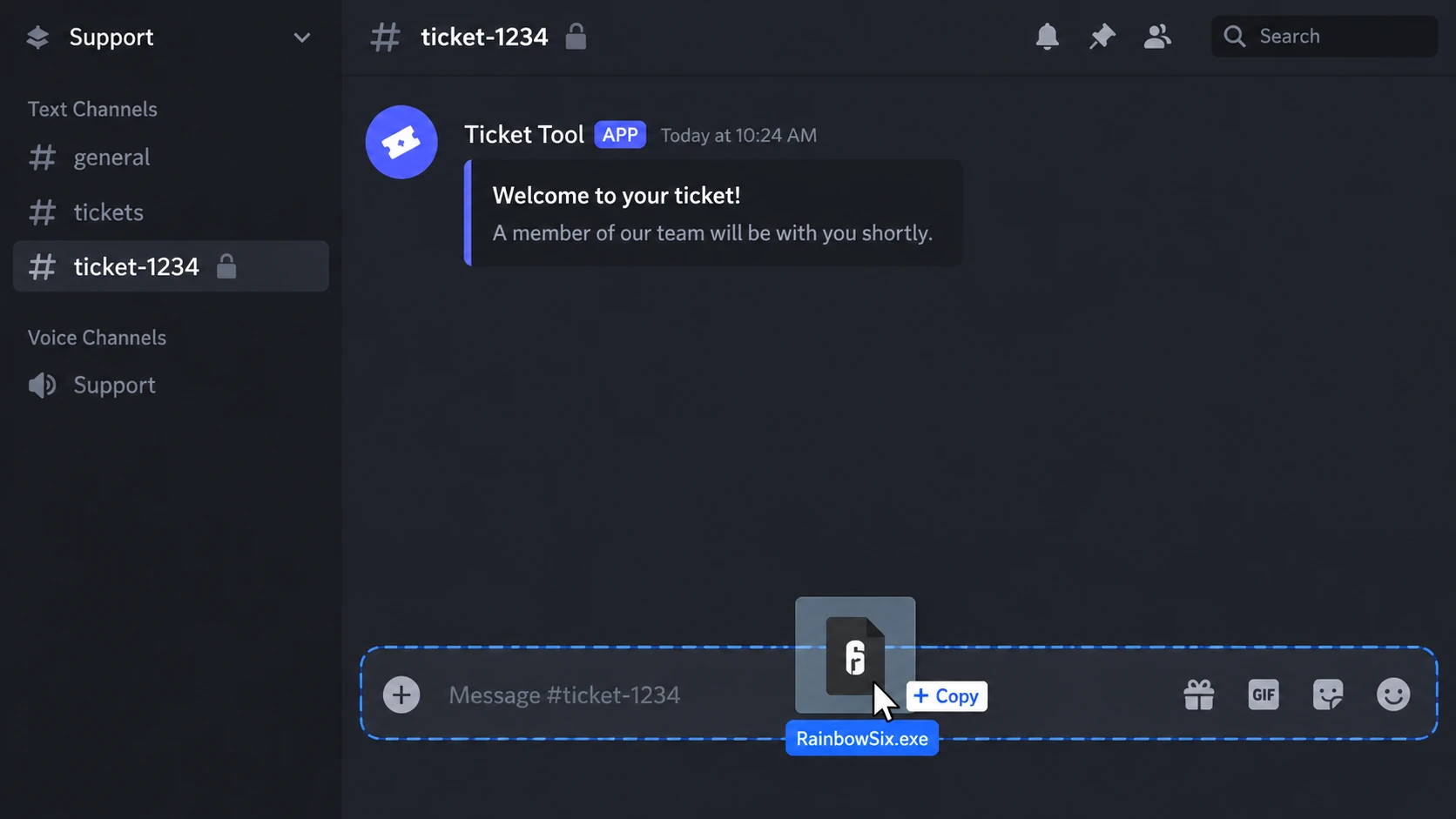
Drag RainbowSix.exe from File Explorer straight into the message box.
Or click the + button next to the box and pick the file.
Drag it over the message box — the blue dashed outline means Discord is ready to take the file - 3
Press Enter and wait for the upload bar to finish before closing Discord.
Everyone else · send a link
- 1
Upload RainbowSix.exe to Google Drive — or MediaFire, Dropbox or WeTransfer if you already use one of those.
Do not rename the file, and do not send a shortcut to it.
- 2
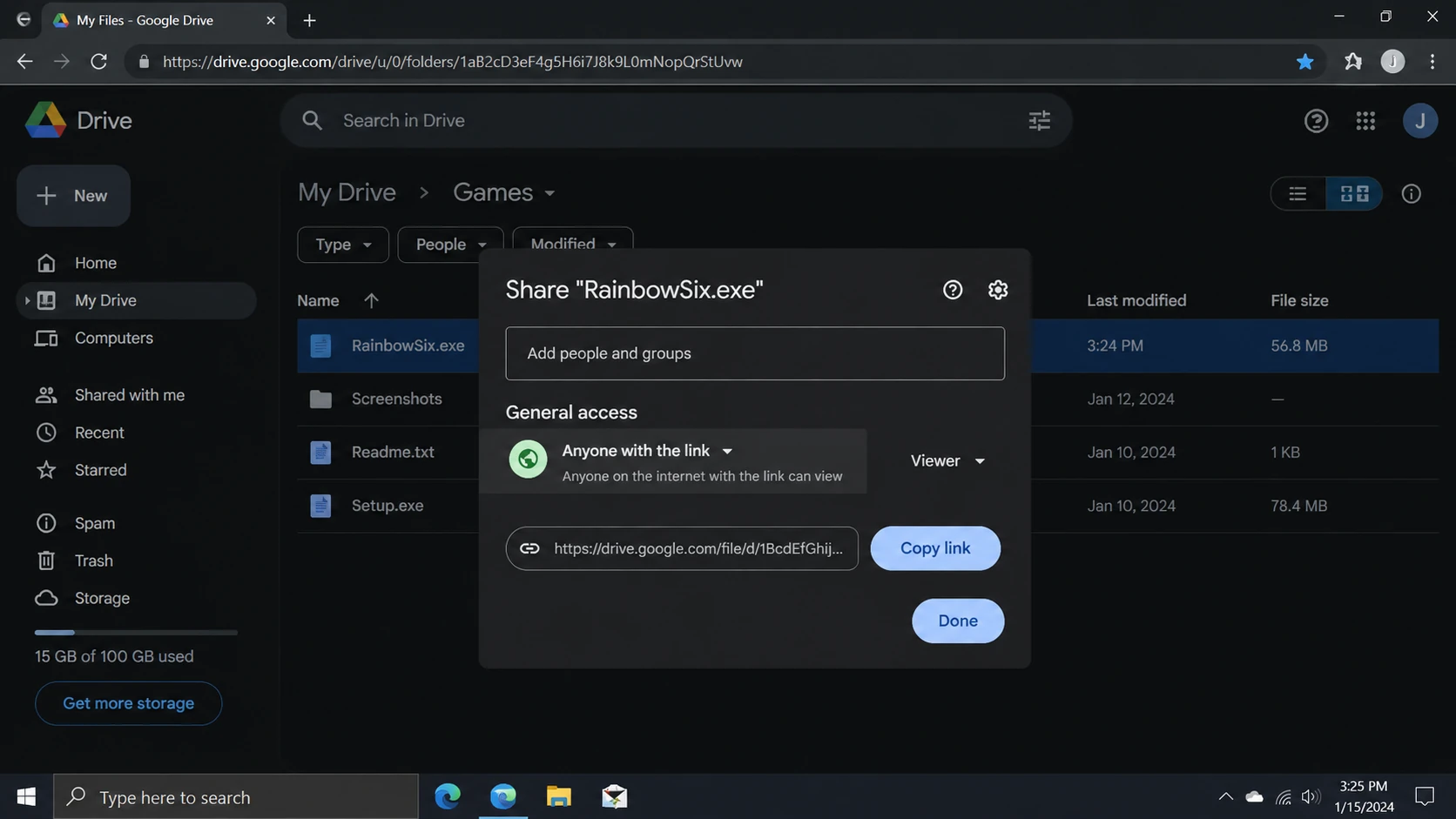
Set the share setting to anyone with the link, then Copy link.
On Google Drive: right-click the file → Share → General access → Anyone with the link. A private link means staff cannot open it.
General access must read "Anyone with the link" — if it says Restricted, staff cannot open it - 3
Paste the link into your ticket and say it is your R6 QB.
Staff will confirm once the offsets are generated — you do not need to re-upload afterwards.
After that you are done. Once we have your build, the offsets are generated on our side and the Build transfer panel will stop appearing for you — and for everyone else on the same build.
Still stuck?
Open a ticket and paste a screenshot of the panel — average response time is about 10 minutes.