
Perm Spoofer Guide
Chapter 5 of 5 · Spoof HWID
Guide · 8 steps
Spoof HWID
Run the loader, log in, select the Perm Spoofer, load it, verify the status in the taskbar, and record your serials. Follow each step in order — the spoofer will then run automatically on every boot.
Guide Chapters
Log In to the Loader
Sign in with the username and password you set when redeeming your key.
Open the loader app and sign in. Use the same credentials you created during key redemption — not your Discord or store account.
- 1
Launch the Loader App from your desktop or downloads folder.
Run it as Administrator if your loader requires it.
- 2
Enter your Username and Password.
These were set during key redemption — not your Discord or store account.
- 3
Click Sign In and wait for the dashboard to load.
Lost your credentials?. Open a support ticket on Discord — your key stays linked to your account.
Open a Ticket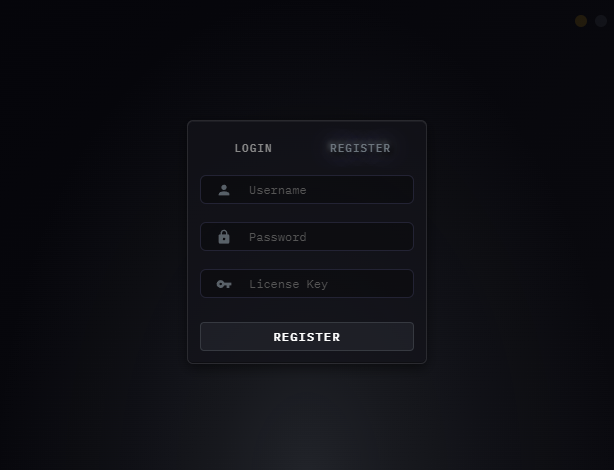
Click image to expand
Run System Cleaning
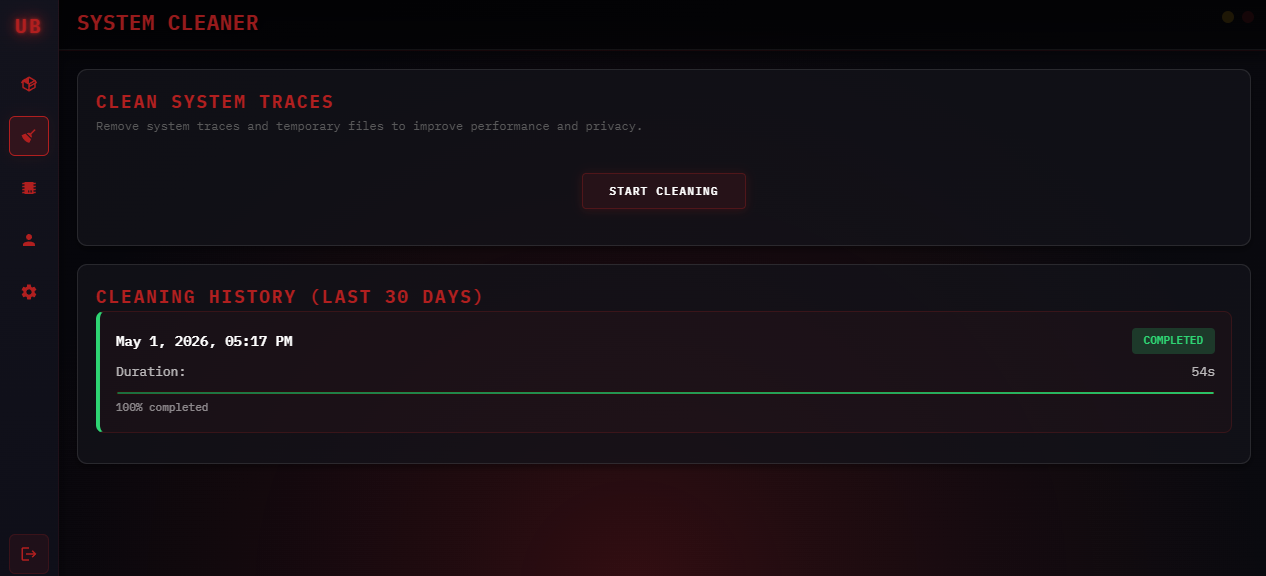
Open the Cleaner tab and run Start Cleaning before every spoof after a ban.
The cleaner wipes hardware traces tied to your previous identifiers. Only run it when changing accounts or recovering from a ban — not every single session.
- 1
Click the Cleaner Icon on the left-hand sidebar (the checkmark icon).
This opens the System Cleaner page.
- 2
Click Start Cleaning and wait for it to finish.
Do not close the window or click anything else while it runs.
- 3
Wait until cleaning completes before continuing to the next step.
Only run when switching accounts or after a ban. Running Clean every session is unnecessary. Run it when you need a fresh identity, not as a daily routine.
Click image to expand
Restart Your PC
A full reboot is required — sleep or hibernate will not work.
Don't skip this. Sleep and hibernate leave cached hardware state intact. A full restart is the only way to properly clear the slate before spoofing.
- 1
Save anything important — Discord chats, browser tabs, etc.
- 2
Fully Restart Your PC using Start → Power → Restart.
Do not use Sleep, Hibernate, or Shutdown + power-on with Fast Startup.
- 3
Wait for Windows to fully boot back to the desktop before continuing.
Restart, not Shutdown. Fast Startup (enabled by default on most PCs) leaves hardware caches intact after a Shutdown. Use Restart to guarantee a full clean boot.
Re-open the Loader
Launch the loader again after restarting and log back in.
After the reboot, open the loader from your desktop shortcut and sign in again. Then navigate to the Perm Spoofer — do not open it yet.
- 1
Open the loader from your desktop and Log Back In with your credentials.
- 2
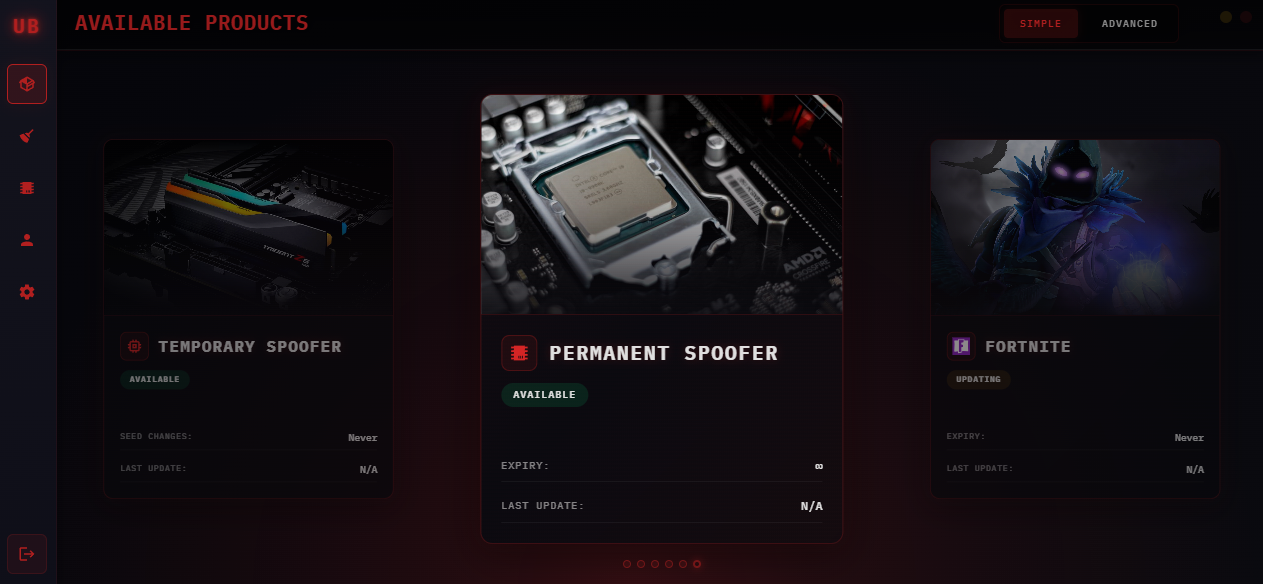
Navigate to the Products section in the loader dashboard.
- 3
Do Not Load the Spoofer Yet — continue to the next step first.
Run as Administrator. Right-click → Run as administrator after a reboot to avoid permission errors when the spoofer writes to system registers.
Click image to expand
Open the Perm Spoofer
Navigate to your purchased products and open the Perm Spoofer tab.
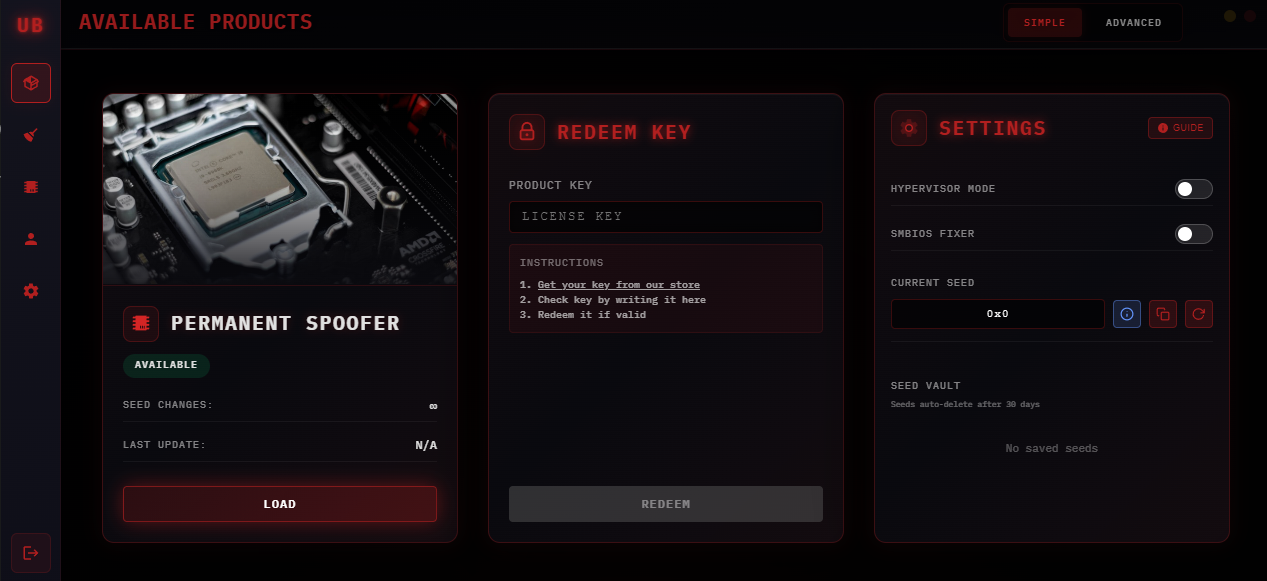
From the loader dashboard, find the Perm Spoofer in your purchased products and open it.
- 1
Navigate to the Products or Dashboard section of the loader.
- 2
Find the Perm Spoofer product card.
- 3
Click the Purchased button below the product image to open it.
Perm Spoofer not showing?. Make sure you're logged in to the correct account. If you just purchased, wait a few minutes and restart the loader.
Click image to expand
Note Your Seed & Click Load
Record your seed value then click Load — the spoofer will apply immediately.
On the Perm Spoofer screen you'll see your seed value along with Redeem and Load buttons. Note your seed first — it controls what hardware IDs are generated. Then click Load.
- 1
Note or screenshot your Seed Value before clicking Load.
The same seed produces the same hardware IDs every boot. Only change it after a ban.
- 2
Click the Load button.
- 3
A notification will confirm the spoof is active — your hardware IDs will now change on every boot cycle.
The perm spoofer can be disabled at any time using the Unload option in the loader.
What just happened?. The perm spoofer is now installed at the driver level. Your hardware IDs change automatically on every reboot — no manual loading needed each session.
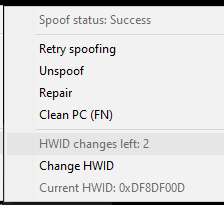
Verify Status in the Taskbar
Check the system tray to confirm the perm spoofer is running correctly.
After loading, verify the spoof is active by checking the system tray icon in the bottom-right corner of your taskbar.
- 1
Click the Hidden Icons Arrow (^) in the system tray (bottom-right of the taskbar).
- 2
Locate the UNBANNED.GG spoofer icon in the tray.
- 3
Confirm the status shows Initializing or Success.
Initializing is normal — wait a few seconds and it will transition to Success.
Seeing an error in the tray?. Close the loader, right-click it and run as Administrator, reopen the Perm Spoofer, and click Load again.
Click image to expand
Record Your Before & After Serials
Confirm your hardware IDs changed and keep a record for future reference.
Compare your current hardware serials with your originals to confirm the spoof worked. Keep a screenshot — it's useful if you ever need to verify again.
- 1
Open a tool like CPU-Z or use the loader's built-in HWID checker to view your current serials.
- 2
Take a screenshot — compare against any pre-spoof screenshots to confirm serials changed.
- 3
You're done. The perm spoofer runs automatically on every boot. No action needed each session.
To temporarily revert to real hardware IDs, use the Unload option in the loader.
You're all set!. Your hardware IDs change automatically on every boot cycle. Play freely — the perm spoofer handles everything. No manual steps needed each session.
Finish all 8 steps to unlock
Mark each step done as you go. The summary unlocks when all 8 are finished.
Leave a Review & Get Rewarded
Enjoying the product? Leave us a 5-star Trustpilot review and claim a free reward as a thank you.
After leaving your review, open a support ticket on Discord and send a screenshot. Choose one of the two rewards below: