
Arc Raiders Guide
Chapter 2 of 3 · Setup
Guide · 5 steps
Setup
Download the loader, configure Discord overlay, and follow the startup sequence. Complete all steps in order before launching Arc Raiders.
Log In to the Loader
Sign in with the username and password you set when redeeming your key.
Open the loader app and sign in. Use the same credentials you created during key redemption — not your Discord or store account.
- 1
Launch the Loader App from your desktop or downloads folder.
Run it as Administrator if your loader requires it.
- 2
Enter your Username and Password.
These were set during key redemption — not your Discord or store account.
- 3
Click Sign In and wait for the dashboard to load.
Lost your credentials?. Open a support ticket on Discord — your key stays linked to your account.
Open a Ticket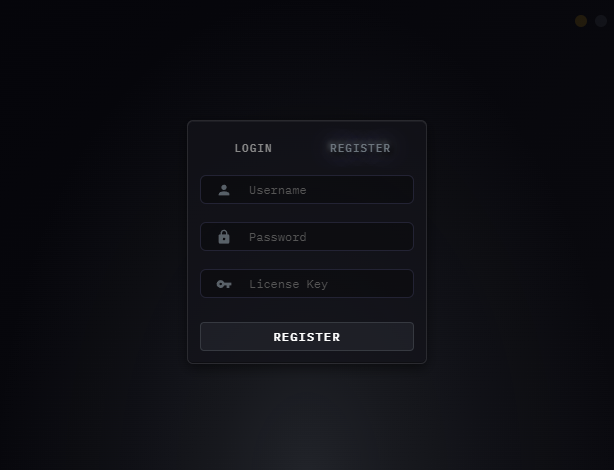
Click image to expand
Configure Discord Overlay
Enable the correct overlay settings in Discord before loading the cheat.
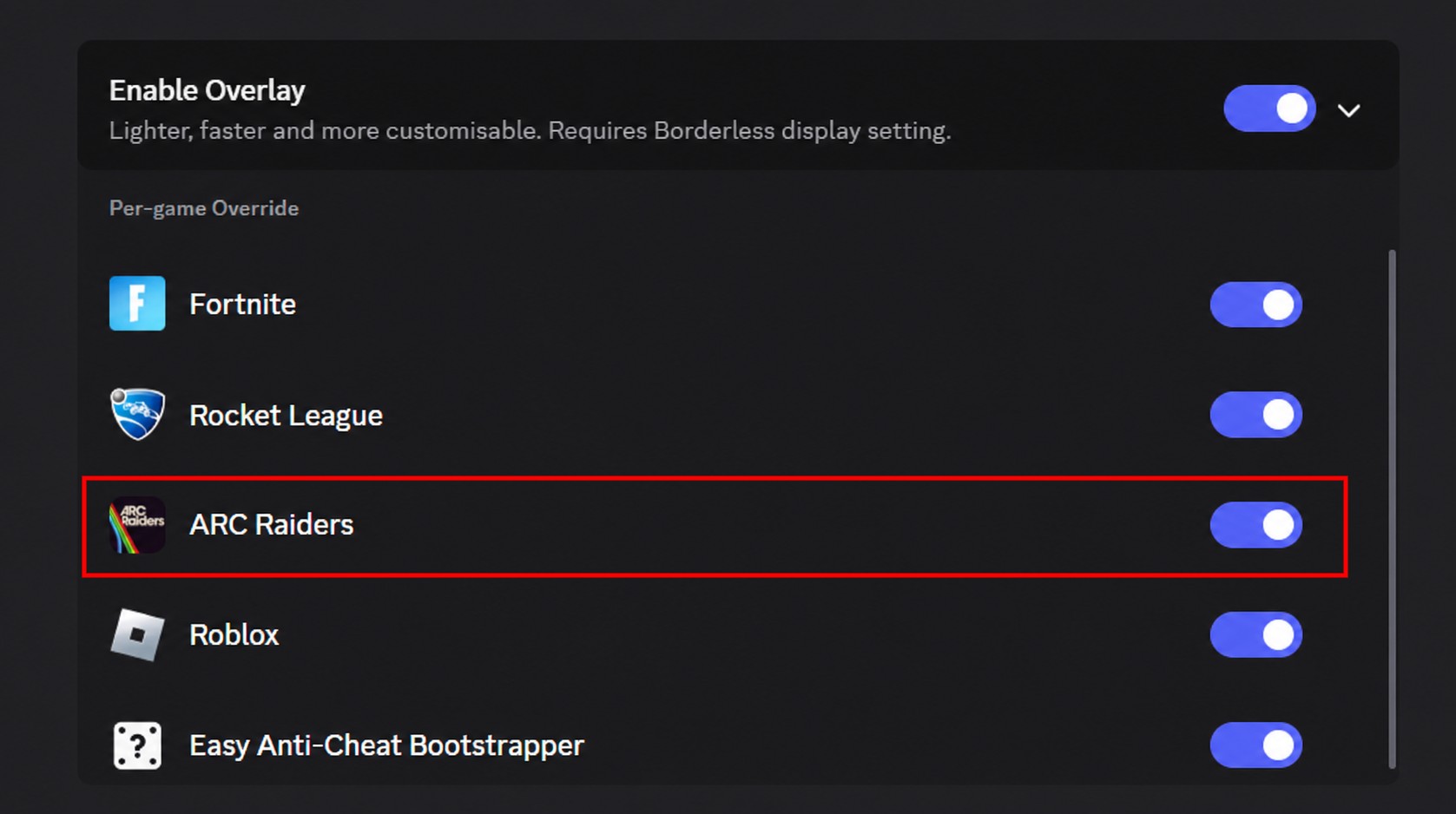
The cheat integrates with Discord's overlay system. These settings must be configured in Discord before you click Load — incorrect settings will prevent the overlay from working.
- 1
Open Discord → User Settings → Game Overlay.
- 2
Enable the Discord standard overlay.
- 3
Disable the legacy overlay.
- 4
Enable the toggle for Overlay and Detection for Arc Raiders.
- 5
Confirm that none of the circled icons appear red.
A red icon means that overlay component is not working correctly.
Click image to expand
Discord Restart — Normal Behavior
Discord may restart on first load. This is expected and only happens once.
On the first time you load the cheat, or after a Discord update, Discord may automatically restart. This is part of the overlay initialisation process and does not indicate a problem.
- 1
Click Load in the loader.
- 2
If Discord restarts, allow it to complete — do not force-close it.
- 3
After Discord reopens, re-open the loader and click Load again.
Only happens once. After the first successful load, Discord will not restart again unless Discord itself receives an update.
Wait for Successful Load
Wait for the loader to confirm injection, then launch Arc Raiders and open the cheat menu.
After clicking Load, the loader will display a confirmation message. Do not open Arc Raiders until you see this — it means the cheat has injected successfully.
- 1
Click Load in the loader and wait.
- 2
Wait until the loader shows "Successfully loaded, please launch game".
Do not open Arc Raiders before this message appears.
- 3
Launch Arc Raiders.
- 4
Once in the main menu, press HOME or INS to open the cheat / overlay menu.
Cheat menu not appearing?. Check your Discord overlay is set up correctly and that Hardware Acceleration is on in Discord → User Settings → Advanced.
Startup Sequence
Follow this exact order every session to ensure the cheat injects correctly.
Every session, follow this sequence in order. The cheat must be injected before Arc Raiders launches — opening the game first will result in the cheat not loading or a detection.
- 1
Open the Loader and log in.
- 2
Click Load — the loader will close automatically once injection is complete.
- 3
Open Arc Raiders and play.
Never open Arc Raiders before clicking Load. The cheat injects into the game process at launch. Opening Arc Raiders first means the injection window is missed.
Finish all 5 steps to complete setup
Mark each step done as you go. The summary unlocks when all steps are finished.
Leave a Review & Get Rewarded
Enjoying the product? Leave us a 5-star Trustpilot review and claim a free reward as a thank you.
After leaving your review, open a support ticket on Discord and send a screenshot. Choose one of the two rewards below: